
INDEX
v1.20
509 Center
Bay City, Michigan
Sales (989) 892-9242 Support (989) 686-8860
ANSI Standard PL/B Language
DATALIST
(See also LISTVIEW)

|
INDEX v1.20 |
509 Center Bay City, Michigan Sales (989) 892-9242 Support (989) 686-8860 ANSI Standard PL/B Language DATALIST
(See also LISTVIEW) |
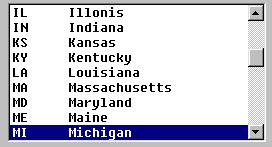
A DATALIST is one of box containing lines of data and a scrool bar on the right side. You can scroll to any line and click or double click on the line to work with the data.Topics
DataList properties Loading data into a datalist Replacing data into a line Pointing to a line in the list Getting Data from list via methods Getting Data from list via GetItem
Properties
LIST SIZE:In the designer you set the size of the box itself. That simply defines the size on the screen.DATALIST PROPERTIES
The list will hold just about as much data as you want. A ListView, on the other hand, starts to perform poorly when too much data is inserted.
Several properties are of interest and deserve comment here:
- SORTED sorts the datalist starting in column 1 of the text string.
- MULTI-SELECT
- NONE: Only ohe line can be selected at any time.
- BASIC: Each line clicked will be selected and stay selected until clicked again. The CTRL-CLICK and SHIFT-CLICK have no effect.
- EXTENDED: Each line clicked will turn off all other selected lines UNLESS you use the standard Windows CTRL-CLICK to select multiple lines or the SHIFT-CLICK to select a series of lines.
- SCROLL BARS: You can have both horizontal and vertical scroll bars.
- HorzExtent:If you use a horizontal scroll bar, you also have to set the HorzExtent to say how far across the user can scroll. This allows you to, in theory, hide data at the end of the line.
There seems to be a limit on this value. Anything greater than about 9500 doesn't work well. You just can't see the end of the line.
PRE-DEFINED VARIABLESWe've pre-defined several datalist work areas in the COMMONWK.PLS include file for MMCC:DATALIST_CONTENTS DIM 2000 DATALIST_CURR_ITEM FORM 6 modifier 0 DATALIST_TOTAL_ITEMS FORM 6 modifier 1 DATALIST_ITEMS_SELECTED FORM 6 modifier 2 DATALIST_NEXT_ITEM FORM 6 modifier 3
LOADING THE LISTYou can pre-load the list from the designer by double clicking on the LISTDATA property. That will give you a dialog box in which you enter the data items and then add them to the list.
This loading window works intuitively in that you can just type in a value and tap enter. The item will be added to the initial list. When you have all the items that you want you press SAVE to save this list.
In the program you LOAD the initial values of the DATALIST like this:DELETEITEM {datalist}, 0 ; Clear entire list INSERTITEM {datalist},99999,{data} ; Insert at END of the list INSERTITEM {datalist},nnn, {data} ; Insert at a specific line
You can do a loop with a specific index value ("nnn") to fill the list. That is,MOVE ZERO,IX1 ; Initialize the index LOOP ADD ONE, IX1 ; increment index INSERTITEM {datalist},IX1,{data} ; Put {data} in line IX1 REPEAT UNTIL {condition}You can also loop and use the 99999 to tack onto the end of the list.LOOP INSERTITEM {datalist},99999,{data} ; Put {data} in LAST line REPEAT UNTIL {condition}
Use the specific index technique if you want to remember where a specific item is stored. For example: Say that you load a list with salesmen. When done you want to position to a particular person. To do this you load the list to specific locations looking for "your" salesman. When you find that person, you remember the index number.MOVE ZERO,IX1 ; Initialize the index MOVE ZERO,OURGUY ; Don't know which line LOOP ADD ONE, IX1 ; increment index INSERTITEM {datalist},IX1,{data} ; Put {data} in line IX1 IF ({data} = {our salesman}) ; Is this our guy? MOVE IX1, OURGUY ; When true, remember IX1 ENDIF REPEAT UNTIL {condition} SETITEM {datalist},0,OURGUY ; Point to our salesman
REPLACING DATA IN A LINEYou can replace the data in any line using the SETITEM command:SETITEM {datalist},IX1,{data} ; replace {data} in line IX1Be sure to note that the index in this command is ONE BASED. Methods use ZERO BASED indexes. This is important because there is no method (as of PL/B Version 8.7) to replace text in a data list. There is a .GetText method for getting data OUT, but no corresponding .SetText to put it back.
So, if you're using a method based loop to access data, be sure to add one to the index before you try to use a Setitem to replace the value!
POINTING TO AN ENTRY:As mentioned above, you may want to pre-set the list to point to a specific line. Do that with the SETITEM as follows:SETITEM {datalist},0,{index} ; Point to line at {index}The above won't work properly with a MULTI-SELECT datalist.
You can instead use the better SetSel method:{datalist}.SetSel USING *Select={0|1}, *Index={index} ... *Select = 1 for selected ... 0 for NOT selected ... *Index is ZERO BASED
To set or reset a range of line use SetSel method. You may need to do this to clear the entire datalist first then SEL the one line you want.{datalist}.SelItemRange USING *Select={0|1}: *First={first},*Last={last} ... *Select = 1 for selected ... 0 for NOT selected ... *Index is ZERO BASED
GETTING DATA OUT OF THE LIST:
You retreive data from the datalist with a standard GETITEM instruction or with METHODS. Both work well.METHOD Technique:
There are a batch of methods in Sunbelt's manual. The most useful are:DataListName.GetCount GIVING {numeric variable}
Returns the number of lines in the list.
DataListName.GetSelCount GIVING {numeric variable}
Returns the number of lines selected.
DataListName.GetFirstSel GIVING {numeric variable}
Returns the zero based index to the first line the user has selected. This will be -1 if no items are selected.
DataListName.GetText GIVING {data string} USING {numeric variable}
Returns the data from the line pointed to in the ZERO BASED using variable. (That variable is the *Index= variable).
DataListName.GetNextSel GIVING {numeric variable}
Returns the zero based index of the next line after the one you just retreived using GetText. It's not clear what happens if you never do a GetText. Should test that.
Getting data from a multi-select list using methods
DLMAX        FORM   3    ;number of items in the data list
DLSEL        FORM   3    ;number of items selected
DLIX         FORM   3    ;Zero based line index
DATA_STRING  DIM  250    ;Data from list

        F1_DL_Accounts.GetCount    GIVING DLMAX  ;information only
        F1_DL_Accounts.GetSelCount GIVING DLSEL  ;information only

        F1_DL_Accounts.GetFirstSel GIVING DLIX   ;first line we want
        LOOP
          IF (DLIX < 0)        ;is -1 if no more lines
              BREAK
          ENDIF
          F1_DL_Accounts.GetText    GIVING DATA_STRING USING DLIX
		  --- process the data ---
          F1_DL_Accounts.GetNextSel GIVING DLIX
        REPEAT
Getting data from DataList: GETITEM Technique:
This works as well as well as the Method technique. Some people are move comfortable with it since it's a one based technique where the methods are zero based.
The first parameter to the GETITEM names the datalist object that you're working with.
The SECOND parameter is the number of the list item that you want. (This is a ONE based number. Methods are ZERO based.) The value will be zero if either it doesn't matter (example 1 below) or when you're asking for the value of the top entry (example 3).
The third parameter's type determines how the instruction works. If the third item is a CHARACTER STRING you'll get data from the list. If the third item is a NUMBER you'll get the index to the line that was clicked. Getting POINTERS for the datalist is done with GETITEM where the 3rd parameter is a number. A data value will be returned in that field as follows: GETITEM {datalist}, 0, {numeric} Gets the index of CURRENTLY active item in the list GETITEM {datalist}, 1, {numeric} Gets the TOTAL NUMBER of items that are in the list. GETITEM {datalist}, 2, {numeric} Gets the number of items which are SELECTED in a multi-select list. GETITEM {datalist}, 3, {numeric} Gets the index of the NEXT selected from a multi-select list.
Note that there are pre-defined variables for these pointers in the COMMONWK.PLS include unit for MMCC. Those are defined at the top of this page.
Getting DATA from the datalist is done with GETITEM where the 3rd parameter is a STRING. The second parameter is the index to the item you want.
For an EDIT style list (where the user can key anything into the datalist's top line), you can use index ZERO to get the top line as it appears to the user.GETITEM {datalist}, nnn, {string} Gets the contents of the entry number "nnn". GETITEM {datalist}, 0, {string} Get the actual value keyed but only if this is a style EDIT where they can put anything in the field.
Getting data out of a multi-select datalist is not as obvious at it seems.
The trick is to use the CURRENT ITEM and the NEXT ITEM pointers properly. CURRENT ITEM points to the currently selected item. That part is obvious. What seems to be the confusion is the next item is the one after the first item in the list OR the next one after the last item you retrieved. Here's a loop that works:GETITEM DataList, 0, CURR_ITEM LOOP COMPARE ZERO, CURR_ITEM BREAK IF EQUAL GETITEM Datalist, CURR_ITEM, TEXT_STRING GETITEM Datalist, 3, CURR_ITEM REPEATThat seems a bit less than elegant, but it works. The point is that before starting the loop you have to learn the current item. That's the first one that the user selected. If that pointer is ZERO then no data was selected. If not zero then you can retreive that first item.
After getting the first item, you need to use the "3" value to get the NEXT item after the one you just retreived. Note that in the sample code I used the CURR_ITEM variable. Although that's what I'm calling it, the "3" says to get the next item after the last one selected or retreived.
With the NEXT item in hand we loop back to see if it's a valid item. If we got a ZERO then we're all done.
NOTE: A useful method is DataList.GetSelCount GIVING WK_Counter.
This will tell you how many lines are selected at any given time.
Datalist contents are simple strings. You can load a list with data like this.DATAGRID or LISTVIEWLOOP PACK WORK_STRING,ID, NAME, ADDRESS ; build string INSERTITEM {datalist},999999,WORK_STRING ; put in list REPEAT UNTIL {condition}The above list will not produce nice columns of data as you might expect. If you use a proportional font the data will appear like this:101 John Jones 600 Lakeshore DriveYou can control the column spacing to some degree by insertting the TAB character (0x09) into your string. But tabs just skip to the next system defined tab, which you can't control. Sometimes things will come out right, sometimes they won't.
101 Larry Lewis 1420 Mountain
103 Susie Sunshine 980 Summer Circle
To produce formatted columns, you must use a fixed width font such as Courier, or FIXEDSYS. (You can select the font when building the form in the forms designer, or you can set it by hand.)
Using a fixed font you'll get this:101 John Jones 600 Lakeshore Drive 101 Larry Lewis 1420 Mountain 103 Susie Sunshine 980 Summer Circle
Windows 95 users have become accoustomed to a structure that looks much like a DATALIST but is, in fact, something else. This is the DATAGRID.
The DATAGRID is typified by several features:There's a header bar across the top with dividers between columns.PL/B provides this function with the LISTVIEW object described in this link.
The data lines up under the columns regardless of the font.
You can change the width of the columns with the mouse by grabbing a divider and sliding it left and right.
You can sort the entire grid on any column by clicking in the column heading. Multiple clicks sort ascending then descending. A small arrow in the right corner of the heading shows which column was sorted last and the direction of the sort.