
INDEX
v1.20
509 Center
Bay City, Michigan
Sales (989) 892-9242 Support (989) 686-8860
ANSI Standard PL/B Language
LISTVIEW
(See also DATALIST)

|
INDEX v1.20 |
509 Center Bay City, Michigan Sales (989) 892-9242 Support (989) 686-8860 ANSI Standard PL/B Language LISTVIEW
(See also DATALIST) |
TOPICS:DATAGRID or LISTVIEW
- General Notes
- Setting up and loading the ListView
- ColorsSetting row C O L O R S
- Processing ListView events
- Closeing and cleaning up a ListView
- Determine selected row/line
- Determine selected row/column
- Determine selected cell "rectangle"
- Getting Data Out
- Multi-selecting lines
- Count selected lines
- Setting Item State (select and deselect)
- Full Row Select
- Drag / Drop
- Check Boxes
- Column Heading Images
- Exracts from Sunbelt Web Board discussions
Windows 95 users became accoustomed to a structure that looks much like a DATALIST but is, in fact, something else. This is the DATAGRID or LISTVIEW.LISTVIEW
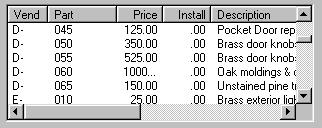
The LISTVIEW is typified by several features:There's a header bar across the top with dividers between columns.
The data lines up under the columns regardless of the use of a proportional font.
The user can change the width of the columns with the mouse by grabbing a divider and sliding it left and right.
The user can usually sort the entire grid on any column by clicking in the column heading.The discussion of LISTVIEW is just being written.
MORE TO COME!
GENERAL NOTES
This FIRST section is a discussion of a few of the notes in the Sunbelt on-line reference.
Interesting points (by number) are shown in this color then disussed as appropriate.
- The LISTVIEW displays a collection of items.
By item the mean ROW.
- Each item in the list has a label.
That is ROW. Don't know what this label is or how to use it.
- Each item in the list can optionally have both a large and small icon or bitmap associated with it.
Not sure where these go or how to use them. There's some kind of list of images but we've not found an example or discussion of this.
- Each item can also have a four byte user defined value associated with it.
Our understanding at this time is this:
This value is not visible. It is not required. It can contain anything that the user wants to store there which will fit in 4 bytes. The value is stored and retreived with the GetItemParam and SetItemParam methods.
- Asociated with each item can be any number of sub-items or columns, but all items must have the same number of sub-items.
Remember that an ITEM is the same as a ROW.
sub-items are COLUMNS.
When it says that all items (rows) must have the same number of sub-items (columns) it just means that the number of columns are fixed for the entire table.
When building the LISTVIEW you insert those sub-items or columns with the "InsertColumn" method. For example:LV_002.InsertColumn USING "Name", 140, 0 LV_002.InsertColumn USING "Sex", 40, 1 LV_002.InsertColumn USING "Age", 40, 2- A sub-item contains a text string that appears next to the item in report view.
That's just the text in the columns.
- LISTVIEW object can be displayed in one of four different views as specified by the VIEWSTYLE property: using the item's large (or standard) icons using the small icons as a list as a report.
SETTING UP THE LISTVIEW
In our mainline programs we normally start with two routines:CALL SETUP_LV_001 CALL LOAD_LV_001The SETUP_LV_001 routine will define the listview columns, set the initial width of each column, the justification. It also sets the overall look of the listview if grid lines are used.
Note that listviews are ZERO BASED. That is, the first column and the first rows are ZERO rather than 1.
setup_lv_001
         DISPLAY   "SETUP Listview"
         F1_LV_001.InsertColumn USING "Agent",       50,   0
         F1_LV_001.InsertColumn USING "Freddy ID",   70,   1
         F1_LV_001.InsertColumn USING "Area",        70,   2
         F1_LV_001.InsertColumn USING "record key", 210,   3
 .
         MOVE      "4",LV_TOT_COLS
 .
         F1_LV_001.SetColumnFormat USING  1, *FORMAT=LVCFMT_LEFT
         F1_LV_001.SetColumnFormat USING  2, *FORMAT=LVCFMT_RIGHT
         F1_LV_001.SetColumnFormat USING  3, *FORMAT=LVCFMT_CENTER
         F1_LV_001.SetColumnFormat USING  4, *FORMAT=LVCFMT_LEFT
.
         F1_LV_001.SetExtendedStyle:
                      USING LVS_EX_GRIDLINES:
                            LVS_EX_GRIDLINES
.
         SETPROP   F1_LV_001,HIDESEL=0 ; Insure sel if no focus
         RETURN
The load of the listview is usually run from a loop. As we get each record we insert that record into the listview as follows:load_lv_001 F1_LV_001.DeleteAllItems ;Empty the listview SETPROP F1_LV_001,AUTOREDRAW=0 ;Turn OFF for loading MOVE ZERO, LV2IX ;Top line is ZERO & headings MOVE SPACE,LLRECKEY ;Start with first record CALL LLIOREAD ;Prime the isi file LOOP CALL LLIORKS ;Read next record MATCH NO,LLNIF ;see if end of file BREAK IF NOT EQUAL ;break when EOF CALL INSERT_LV_002_ITEM ;put into list view MOVE LV2IX, LV_HIGHIX ;How many in list? ADD ONE, LV2IX ;Increment after REPEAT SETPROP F1_LV_001,AUTOREDRAW=1 ; Turn it back on . ......................................... . If we KNOW the line that we want to highlight we can . do it as follows. In this example, IX2 would be the . line we want to point to: . IF (IX2 != 0) ;when we found our line. MOVE IX2,LV2IX ;Line to position to F5010_LV_002.EnsureVisible USING LV2IX,1 F5010_LV_002.SetItemState USING LV2IX,LVB,LVB MOVE LV2IX, EventResult ;for clicker DISPLAY "Call CLICKER" CALL LV_DETAILS_CLICK ;Get the fields Loaded ENDIF RETURNThe following INSERT routine will insert a new line into the listview. The line number LV2IX. Remember that the first line is ZERO.
The first task is to insert the line into the listview using the .InsertItem method. Note that we do this only once for each line and that it also sets the value of the first column.
After the line (item) is inserted, we follow up with .SetItemText methods to put the data in each column of the line.
Our practice is to have TWO routines. The first is the INSERT and the second is the SETITEM. For brand new lines we call the first routine which falls into the second one. Later we can update the contents of the line by calling the second routine.
Data put into the columns must be TEXT, not numbers. If any editing is required, it would be done prior to inserting the text into the column.insert_lv_002_item F1_LV_001.InsertItem USING LLSALEMN, LV2IX . fall into the set which can be used from elsewhere . set_lv_002_item F1_LV_001.SetItemText USING LV2IX, LLID, 1 F1_LV_001.SetItemText USING LV2IX, LLAREACD, 2 F1_LV_001.SetItemText USING LV2IX, LLRECKEY, 3 RETURNPLBWIN 8.7F introduced a new method for setting a group of items all at the same time. This is much more efficient and was desiged for systems running on PLBSERVE to minimize network traffic:F1_LV_001.insertItemEx giving RETURN_CODE using *text=LLSALEMN: *index=Row: *subitem1=LLID: *subitem2=LLAREACD: *subitem3=LLRECKEY
LISTVIEW ROW COLORS
Sunbelt added the ability to set the foreground and background colors for an entire listview row.
It is anticipated that around release 9.0A they'll add the ability to set the color of individual cells.
Color columns are done internally by using a hidden column (width = zero) to store color information for the entire row.
The hidden column can be in any position that the user wishes.
The color column should be defined ONCE when the listview is established.
The background color column is inserted via the InsertColumnBgClr.
The Foreground color column is inserted via the InsertColumnBgClr.
The format of these instructions is:F1_LV_001.InsertColumnBgClr GIVING {return}: USING *INDEX={index}The INDEX value is the (zero based) column where you want the color value stored. The RETURN is the same value coming back. These two are basically redundant . . . except that RETURN can be an error condition if the InsertColumnXXClr fails.
You can only set a single foreground color column and a single background color column. If you use BOTH values, the two columns are in different positions. For example, put the background in column 4 and the foreground in column 5.
Our practice is to do something like:setup_lv_001 DISPLAY "SETUP Listview" F1_LV_001.InsertColumn USING "Agent", 50, 0 F1_LV_001.InsertColumn USING "Freddy ID", 70, 1 F1_LV_001.InsertColumn USING "Area", 70, 2 F1_LV_001.InsertColumn USING "record key", 210, 3 . MOVE "4",LV_BGCOLOR_COLUMN F1_LV_001.InsertColumnBgClr GIVING LV_BGCOLOR_COLUMN: USING LV_BGCOLOR_COLUMNSETTING A ROW's COLOR is done by inserting a color code into the hidden cell just as you'd insert any other value into a cell. For example:F1_LV_001.DeleteAllItems //Empty the entire listview MOVE ZERO,LV2IX //initialize zero based row counter LOOP CALL LLIOREAD //Loop through the LL file MATCH NO,LLNIF //Look for the EOF condition BREAK IF NOT EQUAL CALL INSERT_LV_002_ITEM //Insert this line into the listview ADD ONE,LV2IX //Prepare for next line (zero based ix) REPEAT ...... other stuff in program ...... insert_lv_002_item F1_LV_001.InsertItem USING LLSALEMN, LV2IX . F1_LV_001.SetItemText USING LV2IX, LLID, 1 F1_LV_001.SetItemText USING LV2IX, LLAREACD, 2 F1_LV_001.SetItemText USING LV2IX, LLRECKEY, 3 IF (LLAREACD = "20") F1_LV_001.SetItemText USING LV2IX, "0xCFA5F1", LV_BGCOLOR_COLUMN ENDIF RETURNThe above example inserts a line for each record in the LL file. If the AREA CODE is "20" the background color is set to a putrid purple.
Defining the color is done with a simple string formatted like a standard hex value. The Sunbelt manual says:1. The data string stored into each subitem of the new column specifies a hexadecimal string that represents the RGB background color value of the line item. The expected string format of a line item color is '0xRRGGBB'.That means almost what it says. The value can be be a STRING variable or a LITERAL. We used a literal in the example above. You DO NOT define a hex literal value. The RIGHT and WROND ways are:PUTRID_PURPLE_GOOD INIT "0xCFA5F1" // this is CORRECT PUTRID_PURPLE_BAD INIT 0xCF,0xA5,0xF1 // this will NOT workThe easiest way to find the color values is to use the visual color box in the Forms Designer. You get a nice visual representation and can select any color that you want. You can also program this box yourself by creating a color object and leaving the color blank. (See COLORS Article.)
If you use the Forms Designer to set the color, you'll see the HEX representation in the Properties box.
What you see is NOT what you want!
For whatever reason, the values that show in the Designer are backwards from what the ListView colors should be. The BLUE and RED components are reversed in the hex string. I don't know which is wrong, but they WORK differently. These following two examples are equivalent and product the same putrid purple color:DESIGNER property shows: 00F1A5CF ListView should be: CFA5F1
USING ANOTHER OBJECT'S COLOR
Another useful way to define a ListView color using the designer is to give an object a color then grab that color at run time and use it in the ListView.
Unfortunately you can't use the color directly. It would be nice to just GETPROP BGCOLOR and use that color. Sorry... Won't work.
The work around is to
Get the color components for the object in question as decimal numbers.
Convert each decimal number to a hex.
Build a STRING that the ListView will accept.
Here's our routine, which uses MMCC's standard DECIMAL_TO_HEX utility routine:WORK_COLOR COLOR ;color object WORK_RED FORM 3 WORK_GREEN FORM 3 WORK_BLUE FORM 3 HEX_COLOR DIM 8 HEX_RETURN DIM 2 GETPROP ET_Sample, BGCOLOR=WORK_COLOR ;Get color from form. GETPROP WORK_COLOR, 1, WORK_RED ;Split out the components GETPROP WORK_COLOR, 2, WORK_GREEN GETPROP WORK_COLOR, 3, COLOR_BLUE PACK HEX_COLOR, "0x" ;Initialize color string CALL DECIMAL_TO_HEX, WORK_RED, HEX_RETURN PACK HEX_COLOR, HEX_COLOR, HEX_RETURN CALL DECIMAL_TO_HEX, WORK_GREEN, HEX_RETURN PACK HEX_COLOR, HEX_COLOR, HEX_RETURN CALL DECIMAL_TO_HEX, WORK_BLUE, HEX_RETURN PACK HEX_COLOR, HEX_COLOR, HEX_RETURN
PROCESSING LISTVIEW EVENTS
There is an important thing to know about listviews built in the designer. Events generate a series of values which are stored by the form in local variables. To get these back into a mainline program you have to move them from the local variable to a general variable which the mainline can see.
For example Clicking anywhere on the ROW generates a CLICK event. If you want to know the details of this click you must capture the data within the code in the form itself.
We use the following code on each event that we want to process. This example is for a CLICK event:MOVE "CLICK", ACTION MOVE #EventType, EventType MOVE #EventResult, EventResult (the row number) MOVE #EventObjId, EventObjId MOVE #EventChar, EventChar MOVE #EventMod, EventMod
CLOSEING AND CLEANING UP A LISTVIEW
We learned that listviews which contain a lot of lines can cause a bad behavior in Windows.
When the program performs a STOP, the screen goes away leaving the desktop visible, but the menu program does not come back.
It's been speculated that Windows is in the process of cleaning up memory. Sometimes this can take forever. Users may want to try to start the application again since it looks like it's closed. Eventually Windows finishes whatever it's doing and your next program loads.
To provide feedback we learned to put up a "wait" form to tell the user what's happening. Then we do a DeleteAllItems to have the table cleared. I then do a GetItemCount to keep my program alive until Windows is done. At that point I can drop the "wait" form and chain back to the menu.
This sequence holds the window up and provides the feed back to the user.
Typical code (using MMCC's standard wait form) is:FORMLOAD WAIT_FORM SETITEM FWAIT_StatText001,0,"CLOSE PROGRAM" SETITEM FWAIT_StatText002,0,"WAIT FOR WINDOWS TO CLEAR MEMORY" SETITEM FWAIT_StatText003,0,"THIS COULD TAKE A WHILE!" SETPROP FWAIT_StatText004, VISIBLE=0 SETPROP FWAIT_ProgressBar, VISIBLE=0 SETPROP FWAIT_Button001, VISIBLE=0 F8010_LV_001.DeleteAllItems F8010_LV_001.GetItemCount GIVING IX1 DESTROY WAIT_FORM STOP
FINDING THE SELECTED ROW/LINE
There are a couple of ways to identify the selected line in a ListView. The first is on the CLICK event to save the #EventResult in the PLFORM. That will be the line just clicked.
If you want to find the selected line at anytime, you can use the GetNextItem method at any time. You tell the method to find the next selected line after a given line. If you have a single select listview and just want to find the first selected line, use "-1" as the starting line and do a get next.
If there are NO lines selected, the method will return a "-1".
In this example below we first find the next selected line starting at line "-1" (which is BEFORE the first line). We use LVNI_SELECTED which is defined in PLBMETH.INC. Then we use that line (pointed to by LVIX) and reset the state bits to turn off the selection and the focus:LVIX FORM 5 SEQ FORM "-1" MyListView.GetNextItem GIVING LVIX, USING *Flags=LVNI_SELECTED,*Start=SEQ
FINDING THE SELECTED ROW/LINE and COLUMN
The row in the Listview is called the ITEM. The column is call the SubItem. You can use the SubItemHitTest method to find both of these items based on the #EventResult.
You can get the EventResult matching the mouse location with either the MOUSE DOWN or the MOUSE MOVE events. The MOUSE DOWN is preferred since the Mouse Move occurs continuously as the mouse tracks over the form.
The MOUSE DOWN event fires BEFORE the CLICK event. Therefore, you would trap on the MOUSE DOWN, record the EventResult value, then use that value when the CLICK occurs, or when some other event occurs where you need the column number.
The EVENT RESULT returned from the MOUSE DOWN is an eight digit number which represents the HORIZONTAL and VERTICAL position of the mouse within the form. You have to split that number yourself to get the two parts.
The SubItemHitTest method will use the horizontal and vertical positions and will return a single value which contains the ROW and COLUMN as one number. The column is the low two digits which meand that the method will only get the position for a max of 99 columns.
The coding we use is this.At this point we have stored the ROW and the COLUMN of the last mouse down. The click event fires when the mouse button is released.
- In the PLFORM, trap on the MOUSE DOWN event:
       MOVE    "MOUSE-DOWN",      ACTION
       MOVE    #EventType,   EventType
       MOVE    #EventResult, EventResult  (horiz/vert mouse position)
       MOVE    #EventObjId,  EventObjId
       MOVE    #EventChar,   EventChar
       MOVE    #EventMod,    EventMod
- In the main line we look for the "MOUSE-DOWN" action after the Waitevent then call a routine to do this:
NWK08      FORM   8
LV_HORZ    FORM   4   ;Split horizontal from EventResult
LV_VERT    FORM   4   ;Split vertical from EventResult
LV_ROWCOL  FORM   8   ;Combined row (item) and column (sub item)
LV_ROW     FORM   6   ;Row (item)
LV_COL     FORM   2   ;Column (sub-item)

lv_mouse_down
       MOVE    EventResult, NWK08         ;fix size at 8 bytes
       UNPACK  NWK08, LV_HORZ, LV_VERT    ;split into two parts
       F1_LV001.SubItemHitTest GIVING LV_ROWCOL:
                               USING  *Horz=LV_HORZ:
                                      *Vert=LV_VERT
       MOVE    LV_ROWCOL,   NWK08         ;fix size at 8 bytes
       UNPACK  NWK08, LV_ROW, LV_COL      ;split into two parts
       RETURN
USING THE "RECTANGLE"
There's no method for direct user input inside a cell. To get around this, some people detect a mouse click on the cell then create an EditText exactly on top of the cell. The user enters their data there.
To create the EditText, you need the screen coordinates of the cell you want to cover. This data can be retrieved using the GetItemRect method.LV_001.GetItemRect GIVING LV_RECT_STRING: USING *Index=LV_ROW: *Subitem=LV_COLAs the example shows, this method requires the row (item) and the column (sub item) that you want top get the rectangle for.
You get the row and column using the code above to find the selected row/column.
The GetItemRect method returns a string formatted as follows:ttttbbbbllllrrrr where: tttt = top bbbb = bottom llll = left rrrr = rightWe won't go into more detail at this time. Suffice to say you need to pay attention to creating and destroying the EditText at the appropriate times. You may also have problems if the user moves the ListView using the scroll bars. There is some discussion of these considerations on the Sunbelt Web Board.
Getting Data Out of the Listview
To get information out of the listview you have to know the line that was clicked on. Normally you'd do that on the CLICK or DBLCLICK events. The example above shows how. On that event we'd so something like the following code:......................................... . Load the info from the Clicked list view . lv_details_click DISPLAY "LV Click:": *HON,EventResult, *HOFF, "=line "; MOVE EventResult,LIST_CURRIX . F1_LV_001.GetItemText GIVING LLRECKEY: USING EventResult,19 CALL LLIOREAD DISPLAY "LL:",*HON,*LL,LLRECKEY,*PL,*HOFF," ",LLNIF RETURN .
MULTI-SELECTING LINES (see SHOP5120, GHCW1082)
In the designer, be sure that "Multi-Select" is set TRUEMOVE SEQ, LISTVIEW_CURR_ITEM ;insure first one is first F1_LV_001.GetItemCount GIVING LISTVIEW_TOTAL_ITEMS LOOP F1_LV_001.GetNextItem GIVING LISTVIEW_NEXT_ITEM: USING *FLAGS=LVNI_SELECTED: *START=LISTVIEW_CURR_ITEM IF (LISTVIEW_NEXT_ITEM < 0) BREAK ENDIF . MOVE LISTVIEW_NEXT_ITEM, LISTVIEW_CURR_ITEM . F1_LV_001.GetItemText GIVING any-data: USING LISTVIEW_CURR_ITEM, column REPEAT
COUNT SELECTED LINES (see LV-STUB)
In the designer, be sure that "Multi-Select" is set TRUElv_count_selected_lines MOVE ZERO,LV_TOT_SEL MOVE SEQ, LV_AFTERIX LOOP F1_LV001.GetNextItem GIVING LV_NEXTIX: USING *Flags=LVNI_SELECTED: *Start=LV_AFTERIX . IF (LV_NEXTIX < 0) BREAK ENDIF . ADD ONE,LV_TOT_SEL MOVE LV_NEXTIX,LV_AFTERIX REPEAT DISPLAY *HON,LV_TOT_SEL,*HOFF," items selected" RETURN
FULL ROW CLICK Note that you must make the "FULL ROW" property TRUE in the designer or via a SETPROP if you want the user to be able to click anywhere on the row. If you don't do this, you'll get the CLICK event, but the event handling code will not get a valid row number in EventResult... you just get line ZERO.
ITEM STATES
Each line of the ListView is controlled by a "state mask". As far as we know, this is an two byte bit mask. The definition is (we think):0 0 0 0 0 0 0 0 0 0 0 0 0 0 0 0 HEX | | | | | | | | | | | | | | | FOCUSED 1 0001 | | | | | | | | | | | | | | SELECTED 2 0002 | | | | | | | | | | | | | CUT 4 0004 | | | | | | | | | | | | DROP HIGHLIGHTED 8 0008 | | | | | | | | | | | | 16 0010 | | | | | | | | | | | 32 0020 | | | | | | | | | | 64 0040 | | | | | | | | | 128 0080 | | | | | | | | 256 0100 | | | | | | | | | | | | | | | | | | | | | | | | | | | | 0 0 0 0 1 1 1 1 OVERLAYMASK 0F00 1 1 1 1 STATEIMAGEMASK F000The SetItemState method uses "STATE" and "STATEMASK" to set these bits. The instruction format is:{object}.SetItemState [GIVING {return}] USING [*Index=]{index}: [*State=]{state}: [*Statemask=]{statemask}You can leave out the GIVING unless you want the return. The USING items are required. If you code them in the order given you can leave out the * descriptors. That is, to set line 5 to FOCUSED you'd key:MyListView.SetItemState USING 5,LVIS_FOCUSED,LVIS_FOCUSEDThe STATE and the STATEMASK are defined like this:
- STATE is the bit values you want the bitmask to take.
- STATEMASK is the bits you want to control.
That is, if you want to turn on the FOCUSED and SELECTED bits (the low order two), you could useTo DE-SELECT a line that has been clicked you want to turn off the SELECTED bit which is in bit position 2. You might also want to turn off bit 1. Adding bits 1 and 2 you get a value of hex 3. Therefore your STATE mask will be all ZEROs, which is what you want to set. The STATEMASK is 0x0003 which is binary 00000000 00000011, saying set bits 1 and 2.
- STATE = 0xFFFF (binary 11111111 11111111) which says to set every masked bit to 1.
- STATEMASK = 0x0003, (binary 00000000 00000011) which says to set the low order two bits to whatever is in the STATE mask. In this case, ONE's.
In this example below we first find the next selected line starting at line "-1" (which is BEFORE the first line). We use LVNI_SELECTED which is defined in PLBMETH.INC. Then we use that line (pointed to by LVIX) and reset the state bits to turn off the selection and the focus:LVIX FORM 5 SEQ FORM "-1" HEX_0000 INTEGER 2,0x0000 HEX_0003 INTEGER 2,0x0003 MyListView.GetNextItem GIVING LVIX, USING *Flags=LVNI_SELECTED,*Start=SEQ MyListView.SetItemState USING LVIX,HEX_0000,HEX0003
The following notes come from the Sunbelt on-line manual:
[label]	{object}.SetItemState	[GIVING {return}] USING [*Index=]{index}:
                                 [*State=]{state},[*Statemask=]{statemask}
2. The {state} value is a constant as defined in PLBMETH.INC or a numeric variable indicating one of the following label justifications:
Value Constant The item ... 0x0001 LVIS_FOCUSED has the focus and is surrounded by a standard focus rectangle. Although more than item may be selected, only one item can have focus. 0x0002 LVIS_SELECTED is selected. The appearance of a selected item depends on whether it has the focus and the system colors used to indicate selection. 0x0004 LVIS_CUT is marked. 0x0008 LVIS_DROPHILITED is highlighted as a drag-and-drop target. 0x0F00 LVIS_OVERLAYMASK has its overlay image index set. 0xF000 LVIS_STATEIMAGEMASK has its state image mask set.
3. The required {statemask} is a value from the table above that indicates the valid initial state values. An item's state value includes a set of bit flags. The state value can also include image list indexes that indicate the item's state image and overlay image.
4. The {statemask} parameter specifies the state bits modified, and the {state} parameter specifies the new value for those bits. To set a bit in the item's internal state, set it in both the {statemask} and {state} parameters. To clear a bit in the item's internal state, set it in the {statemask} parameter and clear it in the {state] parameter. To leave a bit unchanged in the item's internal state, clear it in the {statemask} parameter.
LISTIEW DRAG DROP
This information came from TREEVIEW drag/drop discussions. It may and may not apply to the LISTVIEW.
There is no specific drag drop. But you can simulate the action by using the MOUSEDOWN and MOUSEUP events. On each of these you grab EventResult and split it up to get the H:V positions of the mouse. Then you use the ItemHitTest method to translate that H:V coordinate into the handle of the line clicked on. Using that data you can get data from the lines.tv_mousedown DISPLAY "TV MOUSE DOWN " CALL CLEAR_PENDING_INFO ;Start over on any mouse DOWN CALL GET_EVENT_STUFF ;get the associated data MOVE TV_HANDLE,FROM_HANDLE ;the new position. RETURN . tv_mouseup DISPLAY "TV MOUSE UP "; ;this is same as a DROP CALL GET_EVENT_STUFF ;identify line they DROPPED on MOVE TV_HANDLE,TO_HANDLE ;this is line handle CALL DROP_ON_PRESS_LINE RETURN . get_event_stuff MOVE EventResult,WORK11 UNPACK WORK11,WORK03,#H,#V F_TV1.ItemHitTest GIVING TV_HANDLE: USING #H, #V F_TV1.GetItemText GIVING TV_DATA USING TV_HANDLE RETURNListview GRID LINESListView001.SetExtendedStyle: USING LVS_EX_GRIDLINES: LVS_EX_GRIDLINES
That variable "LVS_EX_GRIDLINES" is defined in the PLBMETH.INC include unit provided by Sunbelt. You probably can't get away with the continuation after the USING, but you can put a continuation after the first "LVS_EX_GRIDLINES".
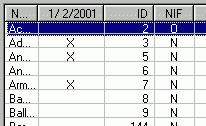
Sorting ListviewsLISTVIEWs are typically implemented in such a way that the user can click on a column header and sort the listview on that column. If the same column is clicked again, the list is sorted in the opposite sequence (ascending then descending then ascending, etc.) Some software indicates the sort direction with a small up/down arrow in the right corner of the heading.
Sunbelt has provided a SortColumn method which implements this feature. You must be on release 8.6F or higher to use this.
Example code:
In the PLFORM we put the following code on the COLUMN CLICK event:MOVE "LV1-COLCLICK",ACTION MOVE #EventType, EventType MOVE #EventResult, EventResult MOVE #EventObjId, EventObjId MOVE #EventChar, EventChar MOVE #EventMod, EventModNOTE: If you are going to allow clicking on the column header you must set the property SortHeader to true. If you don't then you won't get the COLUMN CLICK event when the column header is clicked.
In the mainline program we wait for an event then check for the "LV1-COLCLICK" action. When we see that we call the following routine:
The first time any column is sorted, we want to force it to ASCENDING. What's more, if the user sorts on one column, then shifts to a DIFFERENT column, we want that new column to always sort ASCENDING first. If they want it descending, they can click it a second time.
By initializing the LAST_COL_SORT to "999" (or any number greated than your total number of columns), we insure that the first time a column is clicked the program will think that it's a different column from the last time and it will force ascending sequence.
If the column has a special format, like a date, you can take that into consideration too. In the example below, assume that column 1 is a date column. We look for that and if found we change the sort code to either 5 or 6 for date format and we add a mask to match the column.SORT_DIRECTION FORM 2 ;0,3=None: 1=Ascending: 2=Descending LAST_SORT_COL FORM "999" LV_DIRECTION FORM 2 LV_001_COLS FORM 3 LV_TOT_COLS FORM 3 f1_lv_001_colclick MOVE EventResult,NWK03 DISPLAY "LV1 COLCLICK on col ",NWK03 ;column is ZERO BASED . IF (NWK03 = LAST_SORT_COL) ;when SAME column, flip direction IF (LV_DIRECTION = 2) ;FIRST TIME direction is ZERO MOVE "1",SORT_DIRECTION ;alpha ASCENDING ELSE MOVE "2",SORT_DIRECTION ;alpha DESCENDING ENDIF IF (LV_DIRECTION = 6) MOVE "5",SORT_DIRECTION ;date ASCENDING ELSE MOVE "6",SORT_DIRECTION ;date DESCENDING ENDIF ELSE ;when different col IF (NWK03 = 1) ;force code to ascending MOVE "5", SORT_DIRECTION ;date ASCENDING ELSE MOVE "1", SORT_DIRECTION ;alpha ASCENDING ENDIF . IF (NWK03 = 1) ;If this is a DATE column F9120_LV_Files.SortColumn GIVING NWK01: USING *Column=NWK03: *Type=SORT_DIRECTION: *Mask="mm-dd-yyyy" ELSE F9120_LV_Files.SortColumn GIVING NWK01: USING *Column=NWK03: *Type=SORT_DIRECTION ENDIF MOVE SORT_DIRECTION,LV_DIRECTION ;remember direction DISPLAY "After column sort:",*HON,NWK01,*HOFF RETURN
IMAGES IN THE COLUMN HEADINGS
Listviews typically use those little arrow up/down to indicate the sort direction. This can be done via PL/B too.
These are preliminary notes based on conversation with Matthew Lake 10/9/2002:
- You need an image list in your PL/B program. That's a windows object.
- Create the Image list in the program.
- Use AddBmp to add an image (or a resource) to the list.
If you use an image, it must be a separate file.
If you use a RESOURCE, the image is imbedded into the PLC.
(More on resources later)- Use the AddImageSmall method for the listview to add the images to the listview. This just associates the image with the Listview, it does not activate any images.
- When inserting columns into the listview, use InsertColumnEx rather than the standard InsertColumn method. This "ex" version allows you to define an image for the column.
- Later use SetColumnImage method to actual change the images to what you want.
NOTE: The listview will normally take the first image in the list. You can get NO image by using a high image number, outside the range of the imagelist, to get nothing.
Now, go look at the RESOURCES article for information on imbedding resources into the PLC program.
CHECK BOXES IN LISTVIEWS
The following is a discussion with Matthew Lake from Sunbelt in Feb 2001:
- When enabled, the checkboxes appear at the left end of the line but they don't line up under a column header. Are you aware of any way to give them a heading or other info?
- Once the check boxes are checked, how does the program get that information? I've tried all the methods I can find and none seem to recover any data about the state of the check box.
- Within the program, can you set the state of a check box on or off. For example, I'd like to make a button to SELECT ALL or CLEAR ALL.
Clicking on the CHECKBOX generates a CLICK event followed by a CHANGE event.
but note.....
The CLICK points to the last line that was CLICKED, The CHANGE points to the line on which the check box is clicked. It seems like the CLICK should point to the same line that the CHANGE oints to.
REPLY
The click event on all objects occur before the object processes the even. This is true with radio buttons, checkboxes, listviews and treeviews. Therefore, #Event* will usually contain the state of the object when the click occurred rather than the effect of the click.
From MSDN Library:LVS_EX_CHECKBOXES Version 4.70. Enables check boxes for items in a list view control. Effectively, when set to this style, the control will create and set a state image list using DrawFrameControl. Check boxes are visible and functional with all list view modes. The state of the check box for a given item is obtained using the ListView_GetCheckState macro.so in PLB, this translates to
From Commctlr.h (windows sdk)
#define ListView_GetCheckState(hwndLV, i) \
((((UINT)(SNDMSG((hwndLV), LVM_GETITEMSTATE, (WPARAM)i,
LVIS_STATEIMAGEMASK))) >> 12) -1);this value is defined in the PLB language referencethe state variable should now contain the setting of the check box. (if my math is right :o) )
;under the GetItemState Method.
LVIS_STATEIMAGEMASK integer 2,"0xF000"
Listview.GetItemState giving state using Index,LVIS_STATEIMAGEMASK
divide "4096",state
sub "1",state
...
To set the check box, reverse the process and use SetItemState.
AN INTERESTING DISCUSSION FROM THE SUNBELT WEB BOARD
JimKovalsky
Reged: 12/19/99
Loc: Hadley, MI
Checkbox in a Listview -- placement?
#12159 - 10/12/05 01:26 PM
Maybe I'm missing the obvious, or maybe this just can't be done.....
Can I make the checkboxes in a listview be anywhere other than the 1st column?
Jim
see
Reged: 05/29/98
Posts: 572
Loc: Liberty, MO USA
Re: Checkbox in a Listview -- placement? [Re: JimKovalsky]
#12160 - 10/12/05 02:16 PM
Jim:
What are you trying to accomplish?
--Stuart Elliott
--Clay County Judicial I/S
JimKovalsky
Reged: 12/19/99
Posts: 334
Loc: Hadley, MI
Re: Checkbox in a Listview -- placement? [Re: see]
#12161 - 10/12/05 02:25 PM
I want to have checkboxes in my LV, but I want them as the 4th column when displayed... Matthew has suggested that I try reordering the columns -- I'll see if that works...
Jim
JimKovalsky
Reged: 12/19/99
Posts: 334
Loc: Hadley, MI
Re: Checkbox in a Listview -- placement? [Re: JimKovalsky]
#12163 - 10/12/05 02:42 PM
OK.. That does work. You can set the CHECKBOX property=true, and then do a .setcolumnorder using *index=0,*order=whatyouwant
The check boxes will move to another position in the listview...
Jim
see
Reged: 05/29/98
Posts: 572
Loc: Liberty, MO USA
Re: Checkbox in a Listview -- placement? [Re: JimKovalsky]
#12165 - 10/12/05 03:11 PM
Yeah, but I was curious as to WHY you'd want the checkbox in the 4th column.
Is the "value" you want checkable just a field in a record (a property of the item in the list)? Does it have a more inherent "selection" purpose (do we want to include the item or not)?
If the latter, I would think it should be in the 1st column. If the former, what if you have more than one Y/N-type field?
I'm just musing about your "issue".
--Stuart Elliott
--Clay County Judicial I/S
JimKovalsky
Reged: 12/19/99
Loc: Hadley, MI
Re: Checkbox in a Listview -- placement? [Re: see]
#12166 - 10/12/05 03:36 PM
This scenario has to do with items on an order that are being shipped, and whether or not each specific item had a process occur. I started off using a Y/N field in the listview, and realized that it seemed the perfect place for a checkbox. After all, isn't that the PURPOSE of a checkbox -- to represent an ON or OFF conidition?
Of course, as I went further, this became another case of reality and theory not coming together....
On further examination, there is a THIRD condition -- "Not Applicable". In this case I would need to disable to checkbox for specific lines in the listview, and I don't believe this is possible. Further, I'm using a routine that lets me edit-in-place on top of the listview, so that the user doesn't need the mouse. This doesn't play well with the checkboxes....
Now that I know it CAN be done, I guess I'll go back and use a Y/N/NA column... If it's Y or N, they can change it, but if it's NA, I'll prevent any changes.. I could make another hidden column to indicate the value of my tri-state condition, and still prevent them changing the checkbox value at the right time, but it would take still another column to indicate to the user why they can't change it....
It's been a good learning experience anyways... somewhere later I know I'll use it!
Jim
ssansom
Reged: 03/09/98
Loc: Austin, TX USA
Re: Checkbox in a Listview -- placement? [Re: JimKovalsky]
#12167 - 10/13/05 09:38 AM
This is possible in a regular checkbox via the "tristate" property that allows "Yes", "No", and "Neither" ... I don't know if tristate is possible in a Listview checkbox but might be worth a look ...
Stephen Sansom
Matt
Reged: 05/08/00
Loc: Rusk, Tx USA
Re: Checkbox in a Listview -- placement? [Re: ssansom]
#12168 - 10/13/05 04:47 PM
Another option would be to create your own checkbox images for use with the InsertItemEx *image. Then use the SetItemImage method to reflect the state.
Just another thing to think about/experiment with...
Matthew
OMS
Reged: 01/13/98
Loc: Herlev, Denmark
Re: Checkbox in a Listview -- placement? [Re: JimKovalsky]
#12169 - 10/14/05 02:53 AM
The "checkbox effect" (On/Off/NA) could be accomplished by inserting an AttrColumn into the listview. This way the individual items can have individual font and/or colors. E.g. Strike-out font for NA, GREEN for Yes and RED for No.
Just a thought.
Ole
A DATALIST is a different object. It is a box containing lines of data and a scroll bar on the right side. You can scroll to any line and click or double click on the line to work with the data.
Link to DATALIST article.